 BAMSIREV

Engines for the Model 3
 PORSCHE911 GT3
 HONDAS2000
 RACINGFormula V10
Set it up in the Model 3
- 01
Get the car online
The car's browser needs the internet. With Premium Connectivity it already has it. Without it, join a Wi-Fi network or your phone's hotspot from the car.
No Premium Connectivity? Share your phone's internet in under a minute.
- 02
Open bamsirev.com
Park first. On a Tesla, open the app launcher, tap Browser and type bamsirev.com. Nothing to install, no account.
Save it as a bookmark: next time it's one tap.
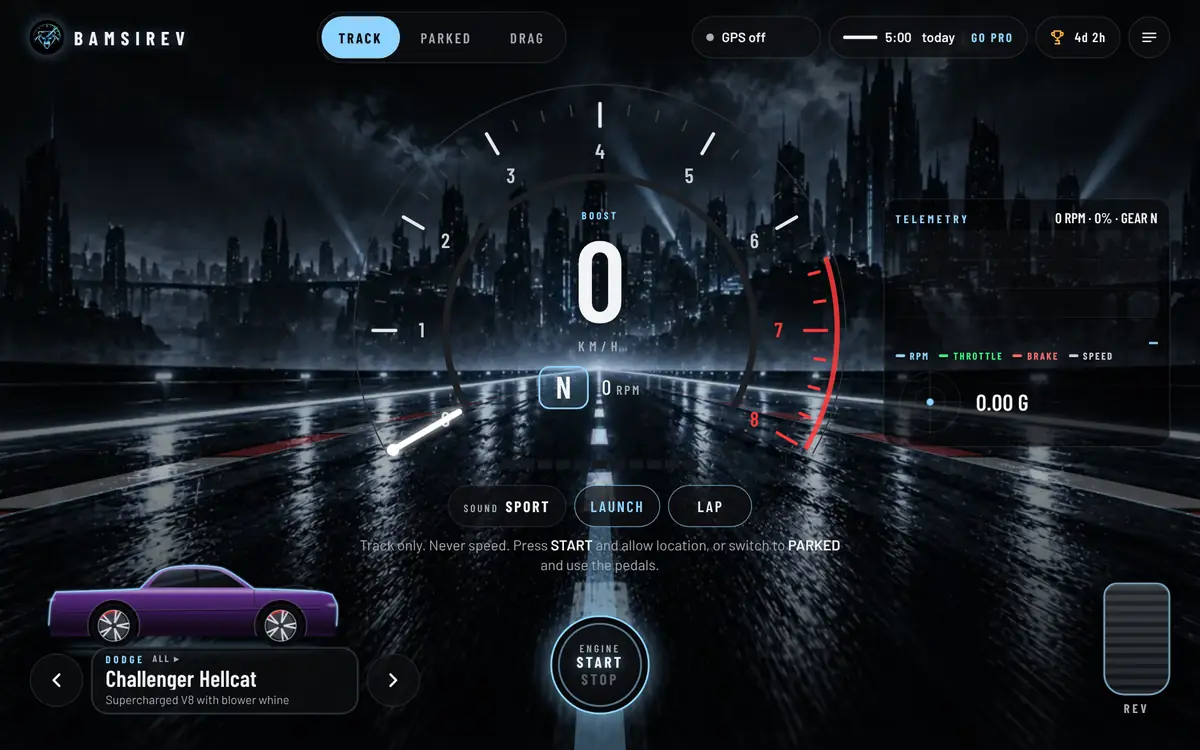
- 03
Press START
Read the track-only rules and tap I AGREE. When the browser asks for your location, allow it: in TRACK mode the sound follows your real speed. Your position stays in the car; we never receive it.
Just want to hear it parked? Tap PARKED and use the GAS and BRAKE pedals on screen.
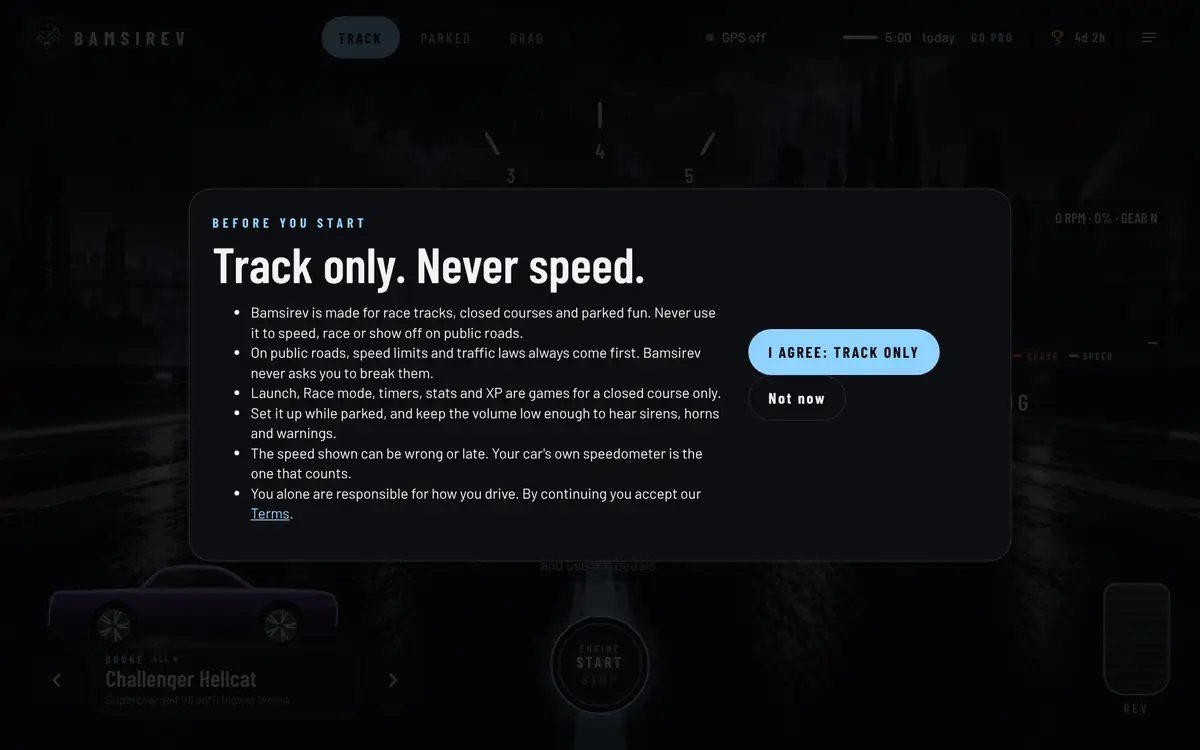
- 04
Pick an engine, turn it up
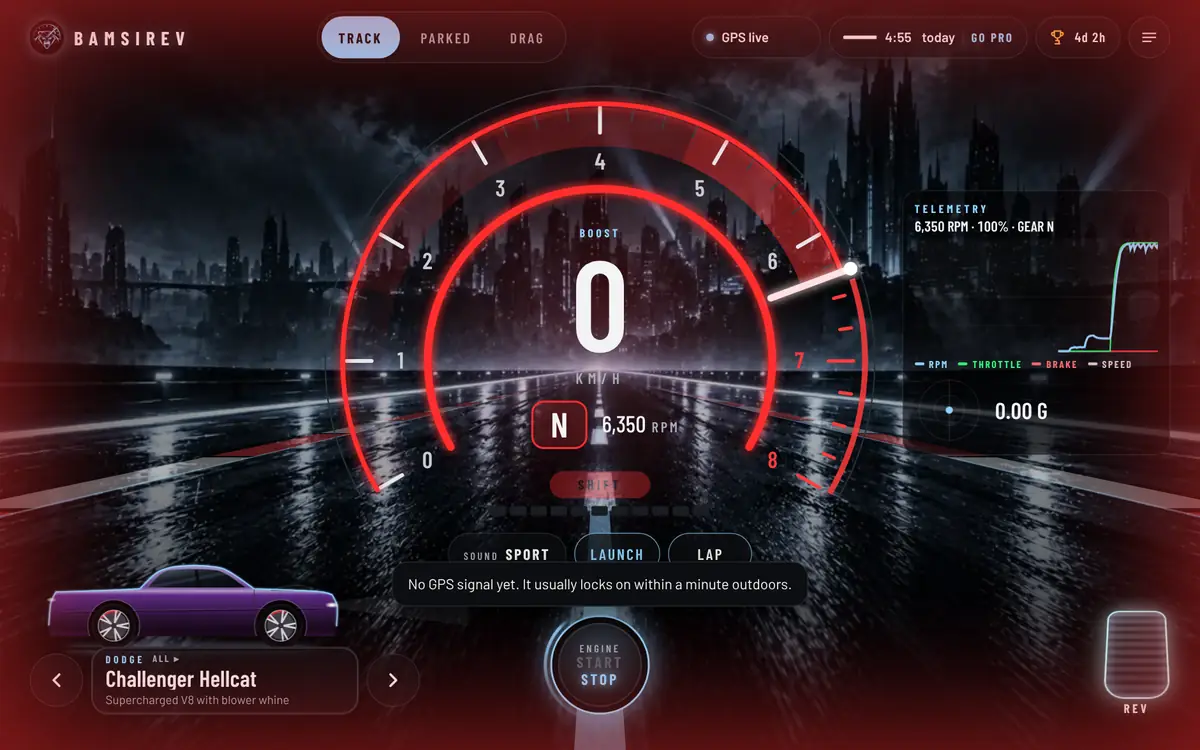
Tap the engine name at the bottom of the dash, or scroll down to the Garage and press HEAR IT on any of the 21 engines. Set the volume with the car's own control, then drive on a track or a closed course.
Hold REV while you stand still to rev it. Let go to hear it crackle.
Model 3 tips
Start it in the Model 3
Park, open the browser and type
bamsirev.com Open the dash